Auto Microplanning (Administrators)
Auto microplanning helps a programme prepare the outreach plan of every health facility (HF) in a Tracking Round. GTS proposes, for each HF, a list of localities to visit. HF staff then review and adjust their own list on a simple web page, and GTS turns the reviewed lists into the targeted areas, reports and team deployment of the Tracking Round.
This page is for national and district focal points who configure and supervise microplanning. HF staff should read Reviewing your Health Facility Microplan instead.
How it works
The workflow has four steps:
Configure — in the Tracking Round administration, choose the HF layer, the area used to group HFs, the locality layer, the number of planned outreach sessions per HF and the rules used to propose localities.
Generate — GTS proposes a microplan for every HF.
Moderate — each HF opens the moderation link, reviews its proposed localities, adjusts them and validates its microplan before the deadline (see Reviewing your Health Facility Microplan).
Apply — after the deadline (automatically) or on demand (manually), GTS generates the final targeted areas, the PDF and Excel microplans, and recomputes the indicators of the Tracking Round (see Validated Microplans and Exports).
How GTS proposes localities
When microplans are generated, GTS works area by area, using the HF boundary layer (for example, Fokontany in Madagascar):
Each HF and each locality is placed in the boundary area that contains it. A locality is only proposed to an HF of the same boundary area.
Localities closer to an HF than the Minimum distance from HF are not proposed. In a Routine Immunization (RI) outreach strategy, these localities are expected to come to the HF (fixed strategy) rather than receive outreach visits.
If visit history is used, localities already visited during the selected period are not proposed.
The remaining localities are ranked by the Target population attribute (largest first) or, if no attribute is selected, by distance to the HF (closest first).
GTS then shares the best-ranked localities between the HFs of the area so that the total distance from HFs to localities is as short as possible, with at most one locality per planned outreach session.
Each proposed locality starts with one visit. HF staff can later add visits, add or remove localities, and change their number of planned sessions.
Note
Distances shown to users follow the road network when GTS can compute a road route between the HF and the locality. Otherwise, a straight-line distance is used. The minimum-distance rule always uses the straight-line distance.
Prerequisites
Before opening the microplan settings, check that the Tracking Round has:
Targeted Areas configured (Tracking Round Targeted Areas tab). The targeted-area stack defines the administrative layers available for microplanning. Without it, the Microplan tab shows No Targeted Areas configured with a link to the Targeted Areas tab.
A health facility point layer — a base layer of points, one point per HF (for example, the CSB layer in Madagascar), uploaded in Base Layers at Organization, Field Activity or Tracking Round level.
An HF boundary layer — a polygon base layer of the stack used to group HFs and localities (for example, Fokontany).
A target locality layer — a polygon base layer of the stack whose features are the localities that can be proposed (for example, Localities). This is normally the smallest base layer of the stack, below the HF boundary layer. It is a base layer, not the Targeted Area layer itself.
Optional: a population attribute — a Geocoverage indicator (Tracking Round Geocoverage Indicators tab) based on an attribute such as estimated population. It is used to rank localities and is shown to HF staff.
Note
The Microplan tab is visible to users who can read the Targeted Areas of the Tracking Round. It is not available for the default “All tracking data” Tracking Round. Changing the settings, generating and applying the microplans require permission to update the Tracking Round.
Configure the microplan settings
In the administration, open the Organization, the Field Activity and the Tracking Round.
Open the Microplan tab.
Fill in the settings described below. Each change is saved immediately; a Settings saved message confirms it.
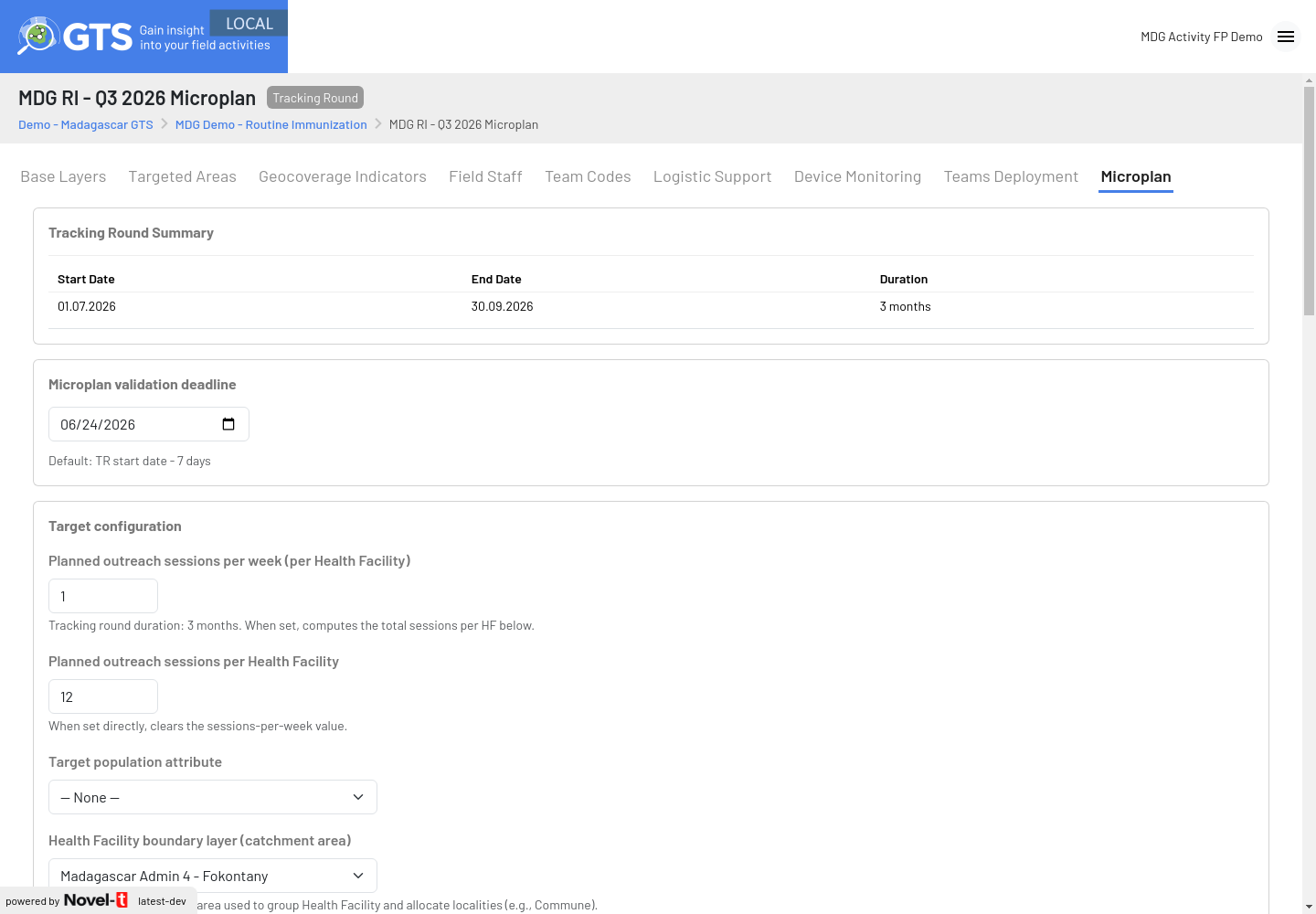
Microplan settings of the MDG RI demo Tracking Round
- Tracking Round Summary
Start date, end date and duration of the Tracking Round, for reference.
- Microplan validation deadline
Date on which moderation closes. The moderation page shows the microplans as Closed from the start of this day (00:00 UTC), so HFs must validate before it: tell them the last day they can work on their microplan, which is the day before the deadline. By default, the deadline is 7 days before the Tracking Round start date (Default: TR start date - 7 days). It must be later than today to generate microplans. In the MDG demo, the deadline is 24 June 2026.
- Target configuration
Planned outreach sessions per week (per Health Facility) — helper field. GTS multiplies it by the number of weeks of the Tracking Round to fill the next field. The default is 4 sessions per week. When you come back to the tab, it shows the objective divided by the number of weeks, rounded (1 in the MDG demo: 12 sessions over 3 months).
Planned outreach sessions per Health Facility — the objective: how many visits each HF is expected to plan during the Tracking Round. In the MDG demo, the objective is 12. Typing a value directly clears the sessions-per-week helper.
Target population attribute — the indicator used to rank localities (optional; — None — ranks by distance). If no indicator exists, a warning links to the Geocoverage Indicators tab.
Health Facility boundary layer (catchment area) — the area used to group HFs and localities. Default: the second-smallest base layer of the stack.
Target locality layer — the localities that can be proposed. Default: the smallest base layer of the stack.
- Health facility layer (HF)
Health facility base layer (Health Facility points) — the point layer of HFs. If no point layer exists, a warning links to the Base Layers tab.
- Outreach eligibility rule
Minimum distance from HF (km) — localities closer than this distance to an HF are not proposed. The default is 5 km, a common operational threshold for RI outreach that can be adapted to the context and to access constraints.
- Visit history (optional)
Turn on Use visit history filter to avoid proposing localities already visited during an earlier activity. Then choose the Field Activity used as visit history and the period, either with Use Tracking Round (the dates of an existing Tracking Round) or with Manual date range.
- Exclude non validated microplan
When Enabled, only validated microplans are used when the final targeted areas are generated. When Disabled (default), all microplans are used, validated or not.
- Automatic application of microplan
When Enabled (default), microplans are applied automatically once the deadline has passed. When Disabled, you must click Generate final targeted areas yourself (see Apply the microplans).
Generate the microplans
The Generate microplans card summarizes the settings (Tracking Round, duration, validation deadline, planned sessions per HF, layers, population attribute, minimum distance, visit history).
Check the summary.
Click Generate microplans.
Wait while the message Microplan generating… N% is shown. The page refreshes the progress automatically; you can leave the page and come back later.
When generation is finished, the message Microplan generated the <date and time> is shown, and the Link to moderation page appears in the summary.
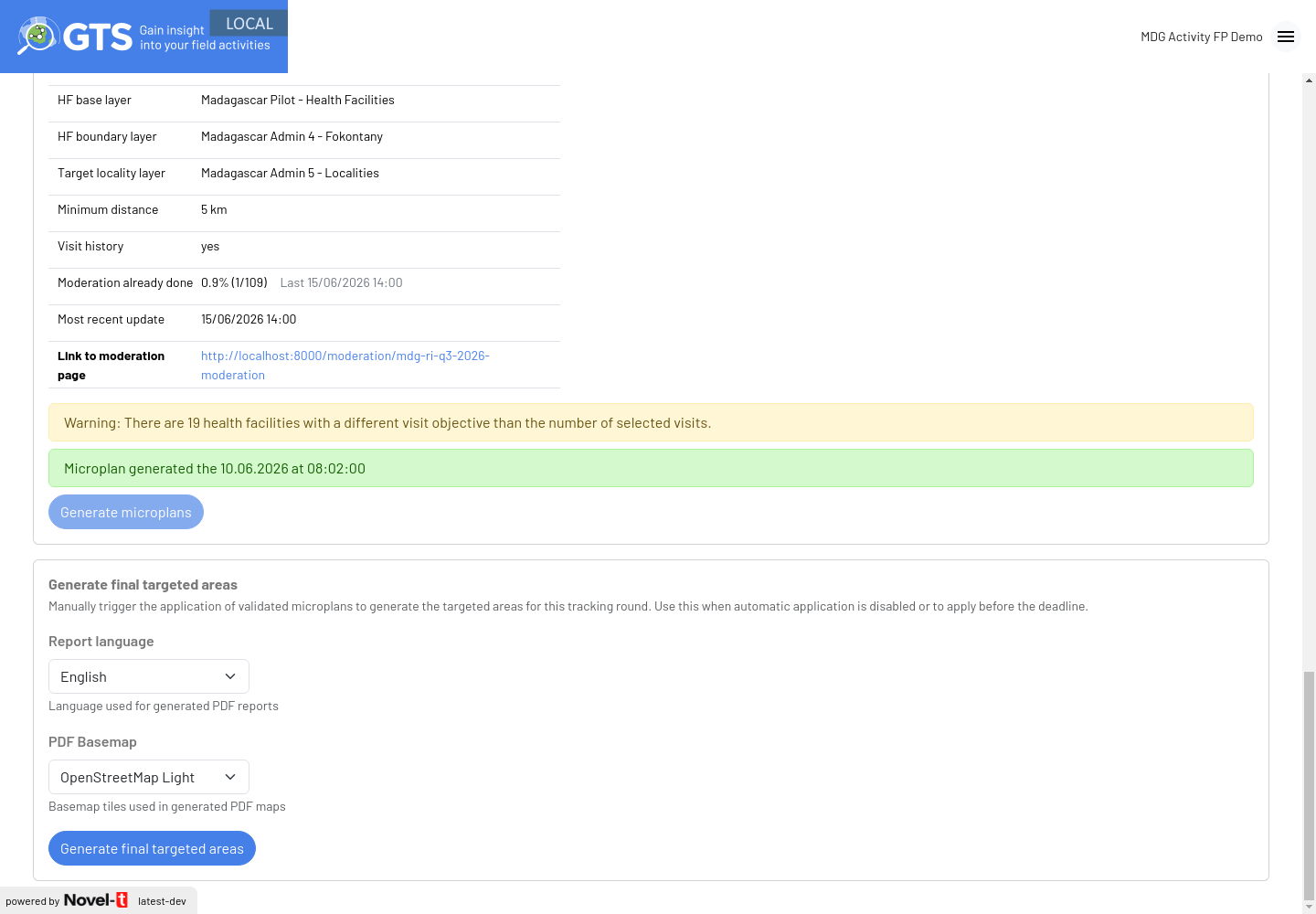
Generation status and moderation link
If a required setting is missing, the message Missing required fields: … lists them above the button. If Use visit history filter is on, the historical Field Activity and period must also be set (otherwise: Visit history is enabled but incomplete…). If the deadline is today or has passed, a warning asks you to choose a future date first and the button stays disabled.
While generation is running, HF staff opening the moderation link see Microplan is being generated, please wait….
Follow moderation progress
Once HFs start working on their microplans, the Generate microplans summary shows:
Moderation already done — percentage and number of HFs that have validated their microplan, with the date of the last validation. In the MDG demo: 0.9% (1/109), only CSB2 Soamahamanina has validated.
Most recent update — date and time of the last change made by any HF.
A warning when some HFs have a number of planned visits different from the number of selected visits: There are N health facilities with a different visit objective than the number of selected visits.
To see which HFs are late, open the moderation link: the HF list shows the status of every HF, can be filtered by area with the percentage of validated microplans, and can be exported to CSV (see Reviewing your Health Facility Microplan).
Regenerate the microplans
Once microplans have been generated, Generate microplans is disabled (tooltip: To regenerate a microplan change the setting first); after application, it is hidden. It becomes available again when you change a setting that affects generation: layers, minimum distance, population attribute, planned sessions or visit history.
A warning then reminds you that existing microplans will be replaced. When you click Generate microplans, the confirmation window Regenerate microplans? shows how much moderation is already done (for example 0.9% (1/109)). Click Yes, regenerate only if you accept to lose it, otherwise Cancel.
Warning
Regenerating erases all moderation done by HFs (selections, exclusions, visit counts and validations). Avoid changing generation settings after the moderation link has been shared.
Changing the Targeted Areas configuration of the Tracking Round can also erase the moderation. The Update Configuration window tells you before you confirm.
Microplans are stored with the health facility and locality layers, not with the Tracking Round. If another Tracking Round uses the same two layers (for example the next quarter), generating its microplans replaces those of this round. Apply the microplans of a round before generating those of the next one.
Apply the microplans
Applying the microplans closes moderation and turns the microplans into the operational plan of the Tracking Round. GTS:
restricts the targeted areas of the Tracking Round to the localities selected in the microplans (only validated microplans if Exclude non validated microplan is enabled);
creates the Excel and PDF microplans (see Validated Microplans and Exports);
recomputes the indicators and map layers of the Tracking Round. The expected number of teams in Teams Deployment is then based on the number of planned visits of each selected locality.
Automatic application
If Automatic application of microplan is enabled, GTS applies the microplans automatically during the night after the deadline (daily check at 01:00 UTC). Automatic application runs only once per Tracking Round, and not at all if the microplans were already applied manually.
Manual application
Use manual application when automatic application is disabled, or to apply before the deadline.
In the Generate final targeted areas card, choose the Report language (English or Français) used in the PDF reports.
Choose the PDF Basemap: OpenStreetMap Light or Satellite (ESRI).
Click Generate final targeted areas.
Read the Apply microplan window. It reminds you which microplans will be used (all, or only the validated ones) and that moderation will no longer be possible. It also warns when some microplans have a number of selected visits different from the objective, or are not validated yet.
Click Apply, or Cancel to review the microplans first.
Wait while Applying microplan… N% is shown. When finished, Microplan applied the <date and time> is displayed with the download links.
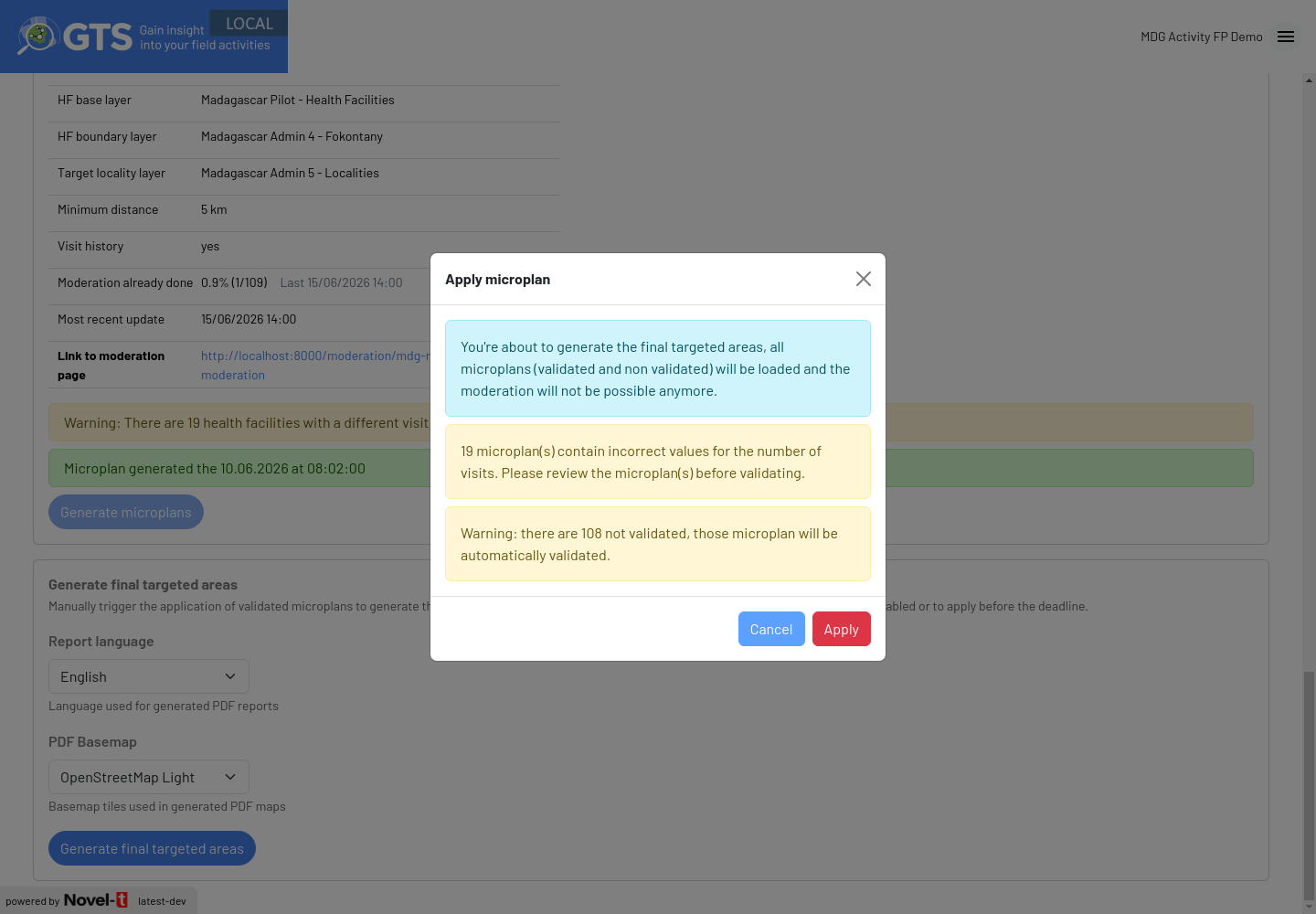
Apply microplan window for the MDG RI demo: most HFs have not validated yet and some have a different number of visits than planned
After a first application, Generate final targeted areas stays disabled until you change the report language or the basemap. Applying again shows Yes, apply again; reports and indicators are unavailable for a moment while GTS recomputes them.
Note
After the deadline or the application, the moderation page shows Closed and HFs can no longer validate, but the page does not block every change. Changes made after the application are not reflected in the targeted areas and files until you apply the microplans again.
Downloads
After application, the success message offers three files:
tr<ID>_microplan.xlsx— one row per selected locality, for all HFs;tr<ID>_microplan_pdf.zip— one PDF microplan per HF;microplan_<Tracking Round name>_summary.pdf— the overview page(s) of every HF in a single file.
Their content is described in Validated Microplans and Exports.