Public Links and Sharing
A public link lets people without a GTS account view the map of one Tracking Round, for example partners, district authorities or a donor. This page explains how to create, share, limit and delete a public link.
Warning
Anyone who has a public link can view the map of the Tracking Round — tracks, targeted areas, teams and indicators — and, from a computer, download its data, until the link expires or is deleted. Share it only with the people who need it, and set an expiration date.
Create a public link
Creating a public link requires permission to edit the Tracking Round (Organization or Field Activity Focal Point).
Open Admin, then the organization and the Field Activity, for example MDG Demo - Door-to-door Campaign.
In the Tracking Rounds list, click the edit icon (Edit this tracking round) of the round, for example MDG D2D - July 2026 Round.
At the bottom of the window, the Public link section shows This Tracking Round is not shared. Click Create a public link. The message Public link created confirms it.
The section now shows People with this link can view this tracking round. and the link itself.
Click Copy public link (Public link copied to clipboard) and paste the link where you need it.
Changes in the Public link section (creation, expiration, deletion) are saved immediately: you do not need to click Save, and Cancel does not undo them.
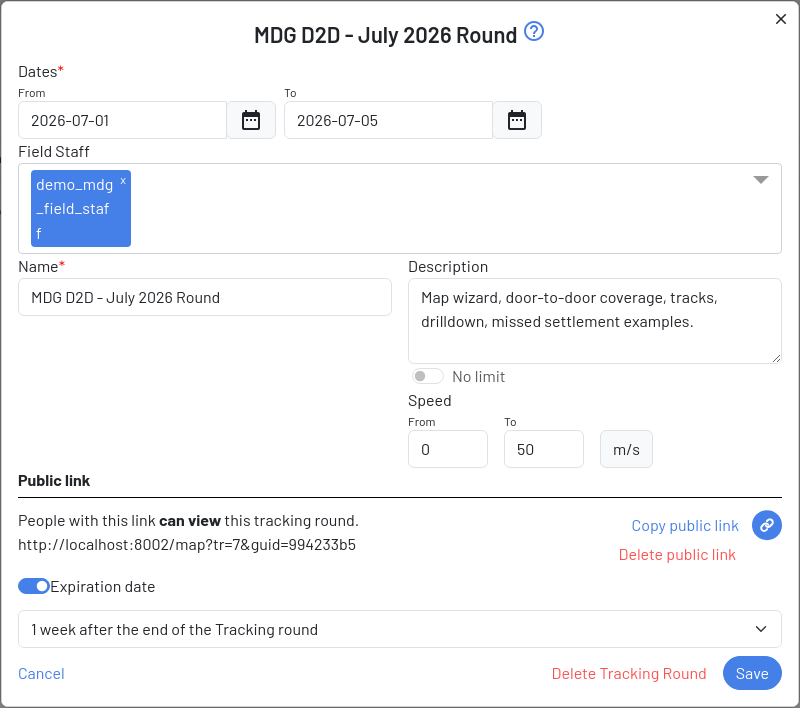
Public link section of the Tracking Round window, with the link and its expiration
Once a public link exists, the map address of the round automatically includes it. The link button in the map header then copies an address that also works for people without an account.
Set the expiration
A new public link expires 1 week after the end of the Tracking round by default. In the Public link section:
Keep Expiration date switched on and choose one of the options: 1 day, 1 week, 2 weeks or 1 month after the end of the Tracking round, or Custom to pick a date in the calendar.
Switch Expiration date off to make the link permanent. Avoid this unless the data can be public.
The link stops working at the start of the expiration day (00:00 UTC). With 1 week after the end of the Tracking round, this is 7 days after the last day of the round: the link of the MDG D2D - July 2026 Round (last day 5 July) works until 11 July. With Custom, pick the day after the last day the link is needed.
When a person opens an expired or deleted link, the map does not open: GTS shows Tracking round not found… and asks the person to sign in.
After the expiration, the Public link column of the Tracking Rounds list shows Expired (otherwise Yes or No), and the map address no longer includes the link.
Delete a public link
Open the Tracking Round window as above.
In the Public link section, click Delete public link (there is no confirmation).
The message Public link deleted confirms it. People who received the link can no longer open the map with it. You can create a new link later; it will have a different address.
What people see with a public link
People who open a public link see the same map as a GTS user: header, period bar, data panel and settings (see Map Overview). They are not signed in: instead of the user menu, a Sign In button is shown, and they cannot open the administration.
On a computer, the download button of the header is also available to them (see Downloads and GPS tracks). On a phone, the Menu of the bottom bar only offers Sign In, so they cannot export from a phone.