ODK form submissions
When field teams fill ODK forms with GTS Collect (for example the MDG RI and stationary activity form), each submission is geolocated and attached to the team that sent it. You can download all submissions of a Tracking Round (TR) as Excel workbooks, or a single submission from the map.
Download all submissions
Open the map of the TR and click the download icon to open the Download options window (see Downloads and GPS tracks).
Choose the period: Cumulated until or Selected day only.
Tick Odk submissions.
Tick Download Medias if you also need the pictures and other files attached to the submissions. Media make the export much larger and slower: tick this option only when you need them.
Check the e-mail address and click Download.
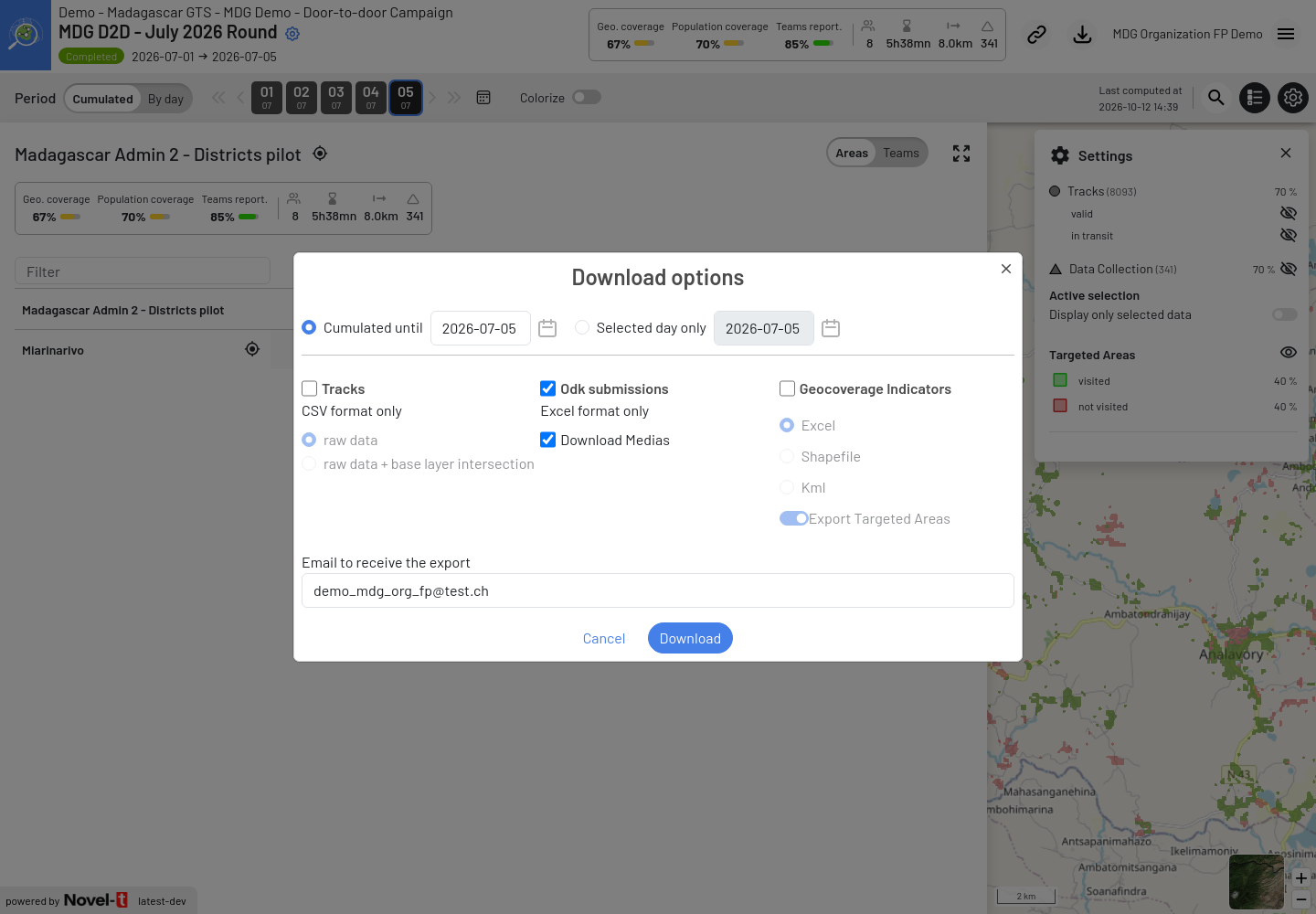
Download options window with Odk submissions and Download Medias ticked
The submissions exported are those of the Field Activity sent during the selected period (from the start of the TR until the selected date, or on the selected day only). The date used is the time of the last GPS point recorded by the phone before the submission (UTC), or the time GTS processed the submission when no GPS point is available.
ODK Central forms
If the Field Activity also uses forms hosted on ODK Central, the window shows Excel format + ODK central and
the warning You will export all submissions of this field activity from <date> to today. The ODK Central data
is added to the ODK_submissions folder as odk_central_export_<form ID>.zip, the CSV export produced by
ODK Central (with attachments when Download Medias is ticked).
Note
In the current version, the ODK Central part of the export has limits: only one ODK Central form of the Field Activity is exported, and the period may not be applied correctly (the file can contain submissions outside the period). On a phone, the window does not show the ODK Central label and warning, but the ODK Central data is still exported. Contact the GTS support if you need the other ODK Central forms.
Content of the export
The ODK_submissions folder of the ZIP file contains one Excel workbook per form, named
<form name>_<form ID>.xlsx. Each row is one submission. Very large forms continue on a new sheet after
1,000,000 rows.
Column |
Description |
|---|---|
id |
Row number in the workbook. |
<Base layer> id / <Base layer> label |
Only when the TR has Targeted Areas: area of each base layer containing the submission, from the largest to the smallest layer. |
outside <smallest base layer> |
TRUE when the submission is outside every area of the smallest base layer. GTS then gives the closest area within 1 km, or leaves the area columns empty. |
Targeted Area id / Targeted Area label |
Only when the TR has Targeted Areas: Targeted Area containing the submission. |
last_track_gps_timestamp_utc |
Date and time (UTC) of the last GPS point recorded by the device before the submission. |
submitted_at_localized |
Date and time of the submission used by GTS, in UTC despite its name: the same value as the previous column, or the time GTS processed the submission when no GPS point is available. |
last_track_gps_time_utc |
Time only (UTC) of the last GPS point recorded before the submission. |
imei |
Identifier of the Android device. |
user_id / user_username |
GTS identifier and user name of the field staff account. |
team_code |
Team code entered in GTS Tracker. |
form_id / form_name |
Identifier and name of the ODK form in GTS. |
long / lat |
Longitude and latitude of the submission (WGS 84): the location question of the form when the form has one configured, otherwise the last GPS position of the device. |
filename |
Name of the submission file received by GTS. |
uploaded_at_utc |
Date and time (UTC) when the submission reached GTS. |
<form questions> |
One column per question of the form. Questions inside groups are named with the group path, for example |
Repeat groups (questions that can be answered several times in the same submission, such as one row per child
vaccinated) are exported in a separate workbook <form name>_<form ID>_<repeat group>.xlsx, with an id and
a parent_id column to link each repeat to its submission.
When Download Medias is ticked, the media of each submission are added to the folder
ODK_submissions/<form ID>_<form name>/.
Download one submission from the map
To check a single submission, show Data Collection in the Settings panel of the map, then click its triangle symbol. The pop-up shows the form and its answers (click Show more… to see all of them); media files can be opened by clicking their name. Click Download as zip to download the submission file with its media.
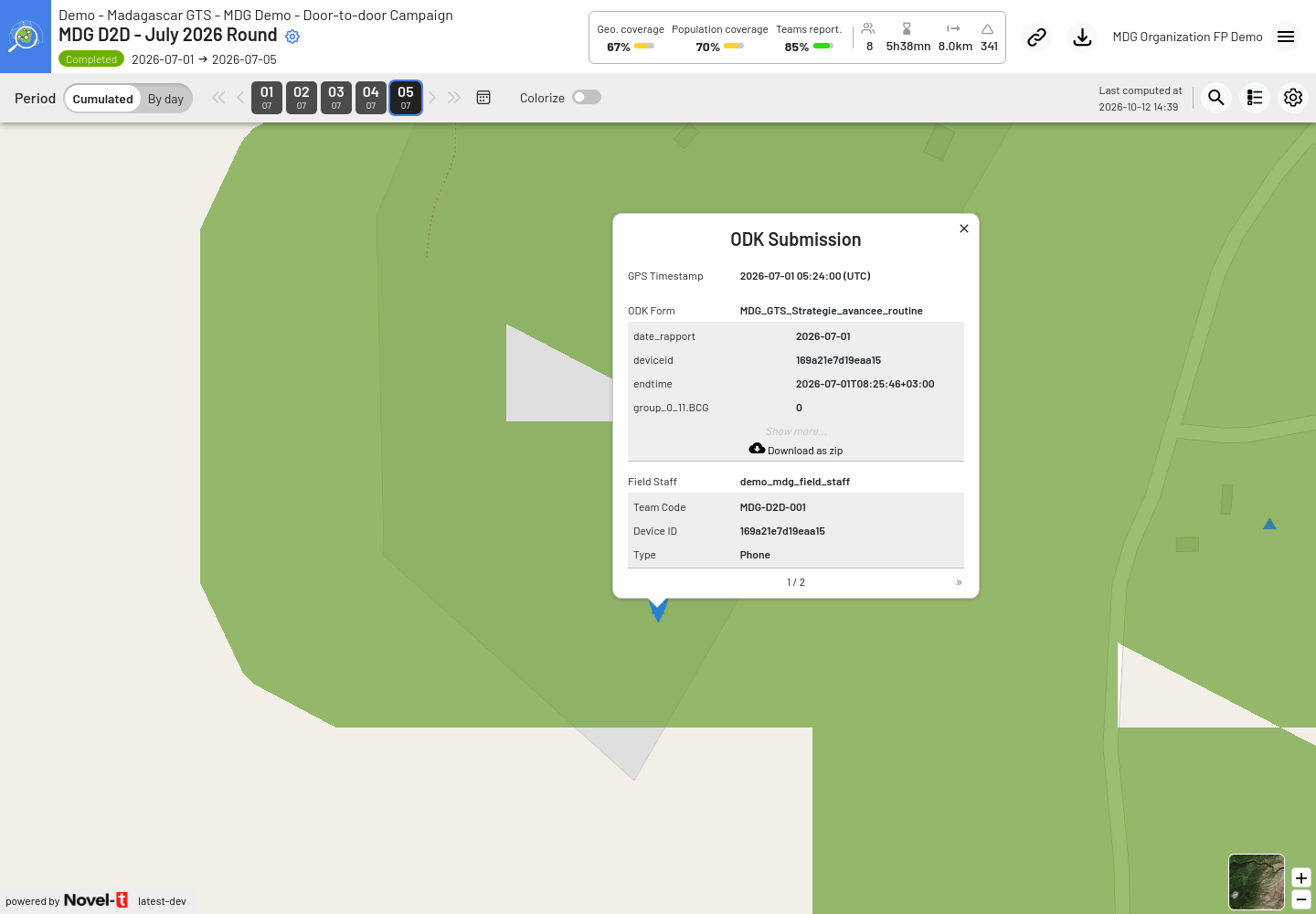
Pop-up of one ODK submission, with the Download as zip button
Compared with previous versions
ODK submissions were previously available as Excel, Shapefile and KML files. They are now exported in Excel only.
Use the long and lat columns to display them in a GIS tool.